Data decides most of a collection's order, but not all of it. Pin a hero product, demote one that should sink, move a product to an exact position in SellRank, and hand it back to the rules when you are done.
This is part 3 of the SellRank tutorials. Ranking by data gets most of a collection right, but you know things the numbers do not: the campaign starting on Monday, the product that photographs beautifully, the one with a supplier problem. This part shows how to override the rules for individual products, and how SellRank keeps those decisions on every re-sort.
Reading a preview tile
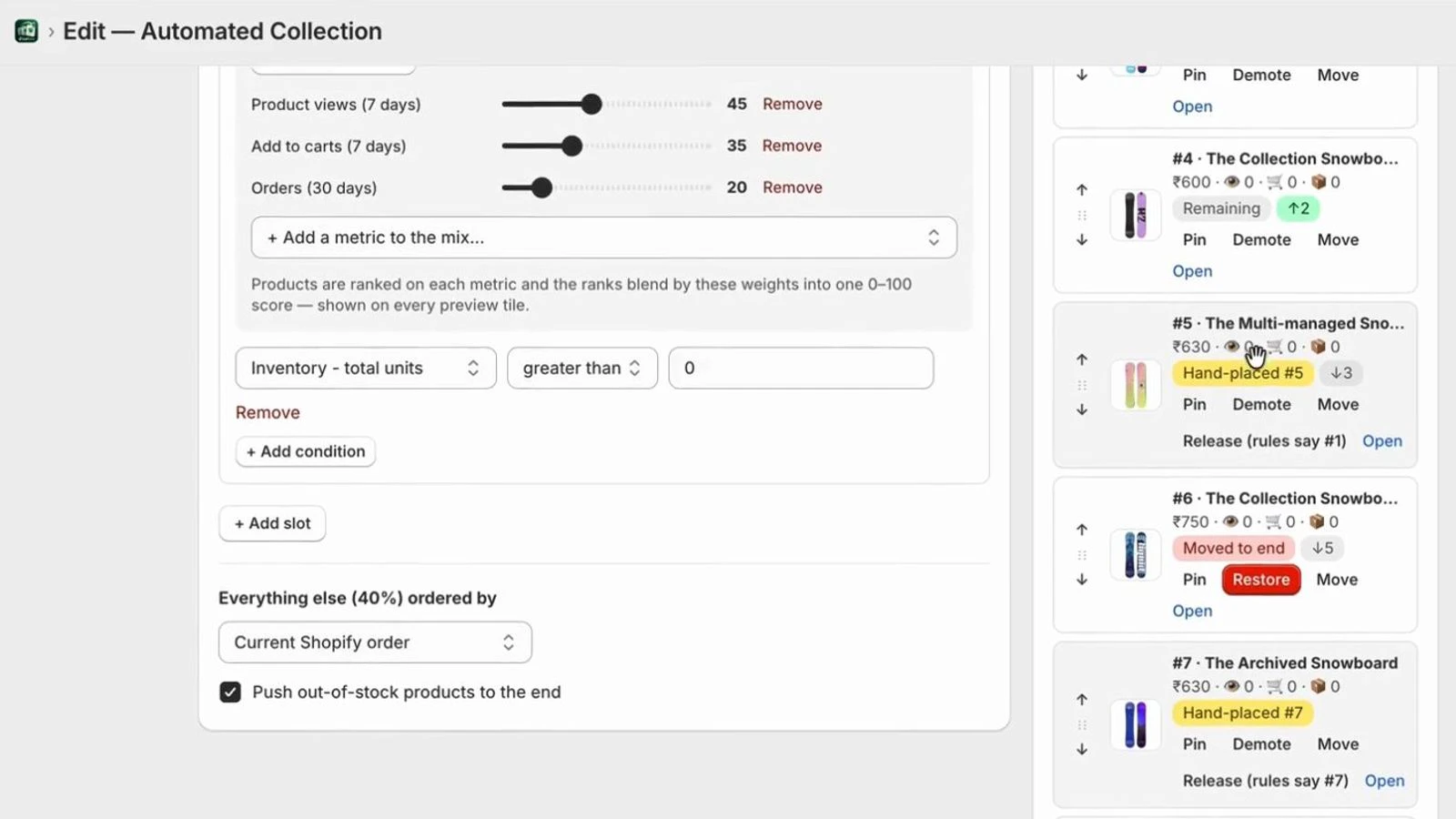
- Its position in the collection and the product's title.
- The price, and the product's views, add-to-carts and orders.
- A badge for the slot that placed it, or Remaining if it came from the Everything else order.
- Its balanced score, when the slot uses one.
- How far it moves compared with the current order, such as ↑2.
Pin: keep a product at the top
Click Pin on a tile to fix that product at the top of the collection, above everything the rules rank. Use it for a hero product, a campaign lead or a new launch you want seen first. The button then reads Unpin, which hands the product back to the rules.
Demote: send a product to the end
Demote sends a product to the end of the collection, below everything the rules place. The tile then reads Moved to end, and its Restore button undoes it.
Move: put a product at an exact position
- 1Click Move on the tile.
- 2Type the position you want, such as 3.
- 3Click Go.
The product is placed at exactly that position, its tile reads Hand-placed #3, and the rest of the order flows around it. To hand the product back to the rules, click Release. The button tells you where the rules would put it, such as Release (rules say #12).
Arrows and drag
For small adjustments, use the up and down arrows on a tile, or drag it onto a new spot. The preview recomputes each time, and a product moved this way is hand-placed like any other, with Release to undo it.
Open: jump to the product in Shopify
Open on any tile takes you straight to that product in Shopify admin, which is handy when a product looks out of place and you want to check its stock or price.
Your choices survive every re-sort
Pins, demotions and hand placements are saved with the smart sort. Every sync, the ones you press and the scheduled ones alike, recomputes the order from fresh numbers and then applies your choices on top. A hand-placed product stays at its position until you release it.
When the preview looks right, click Create smart sort, or Publish & sync if you are editing a smart sort that is already live, and the order goes to Shopify.
Next in this series
Part 4 keeps the order current without you: daily or weekly re-sorts, drafts with go-live dates, version history and sort health.