On SellRank's Scale and Max plans: rank collections by estimated profit and margin using Shopify's cost per item, and connect Google Analytics 4 to import up to 90 days of view and add-to-cart history, without handing over a password.
This is part 5 of the SellRank tutorials. Two features on the Scale and Max plans make the order smarter: ranking by profit, so your best margins get the best positions, and a Google Analytics 4 import, so ranking by engagement has history before SellRank's own pixel has collected any.
Rank by profit: fill in cost per item
- 1In Shopify admin, open Products and choose a product.
- 2In the Pricing section, enter Cost per item. Do the same for each variant with its own cost.
- 3Save the product.
SellRank reads cost per item from Shopify. Where a product has no cost, its profit and margin read zero rather than a guessed number, and the label says est. for exactly that reason.
Rank by profit: choose the measure
In a smart sort, set a slot's ranking, or Everything else ordered by, to Profit (30 days, est.) or Margin %. Margin is the share of the price left after cost per item; estimated profit is a product's revenue over the last 30 days multiplied by that margin.
Or blend profit with other measures using the Profit maximizer preset: estimated profit 45, conversion % 30, product views 25.
Why connect Google Analytics 4
SellRank's own pixel counts views and add-to-carts from the day you install, on every plan. If you already run Google Analytics 4, connecting it imports up to 90 days of history, so ranking by engagement works on day one. For any day, the pixel's numbers win; Google Analytics only fills the days the pixel was not there for.
Connect GA4: give SellRank read access
- 1In SellRank, open Settings and find the Google Analytics (optional) card. It shows an email address ending in iam.gserviceaccount.com: SellRank's reader account.
- 2In Google Analytics, open Admin, then Property access management.
- 3Add that address with the Viewer role.
- 4If you like, tick No Cost Metrics and No Revenue Metrics on that access. SellRank only reads item views and add-to-carts, never your revenue or ad spend, and the import works with both ticked.
Connect GA4: import the history
- 1In Google Analytics, find your numeric property ID under Admin, then Property settings.
- 2Paste it into GA4 property ID on SellRank's Settings page.
- 3Click Connect & import history. The card shows Connected with your property ID, and the first import runs.
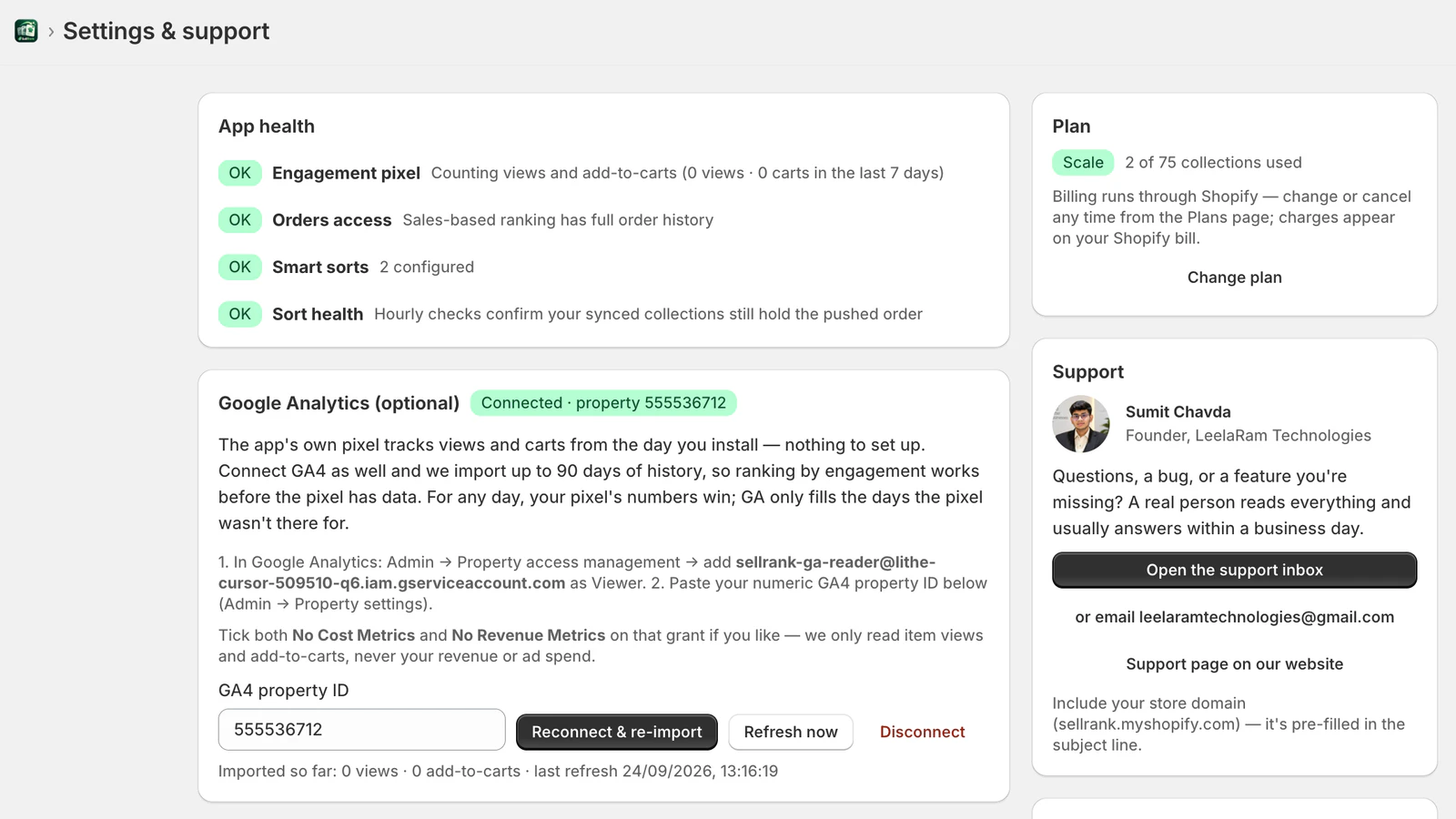
Refresh now pulls the latest days on demand, and Reconnect & re-import runs the history import again. To stop, click Disconnect: the link and everything imported through it are removed.
No Google password or key of yours is stored anywhere. You grant SellRank's reader account access inside your own Google Analytics, and you can revoke it there at any time.
App health, at a glance
- Engagement pixel: counting views and add-to-carts, with totals for the last 7 days.
- Orders access: whether sales-based ranking can read your orders.
- Smart sorts: how many are configured.
- Sort health: the hourly check that Shopify still holds each pushed order.
That's the series
You have installed SellRank, built an order plan, curated it by hand, put it on a schedule and connected your data. If anything does not behave the way these tutorials describe, the Support page inside the app reaches the founder directly, and the reply appears in the same thread.