Install SellRank on Shopify, create your first smart sort, preview the exact order and sync it into your collection, step by step, with screenshots from the app and the matching part of the walkthrough video.
This is part 1 of five SellRank tutorials. By the end of it you will have a Shopify collection ordered by how its products actually sell: previewed product by product before anything changed, then written into Shopify's own collection sort. It takes about five minutes, and nothing in your theme is touched.
SellRank is the collection sort app we build at LeelaRam Technologies. If you would rather watch than read, the walkthrough below starts at the right chapter, and every step in this post matches what is on screen.
What you need before you start
- A Shopify store with the Online Store sales channel. The order SellRank writes is what your storefront's collection pages show.
- A collection with a handful of products. Ten or more makes the result easy to see.
- About five minutes. No developer, no theme edits, no code.
Step 1: Install SellRank from the Shopify App Store
Find SellRank: Collection Sort in the Shopify App Store and click Install. Shopify shows exactly what the app may access before anything happens, and the app opens inside your Shopify admin as soon as you approve.
- Your orders and inventory, to rank products by real sales and stock.
- Your products, to write the order of products inside the collections you choose.
- Storefront events through a web pixel, to count product views and add-to-carts as daily totals per product, with no customer identifiers.
There is no separate account to create and no password: Shopify signs you in.
Step 2: Open the app once, and it sets itself up
The first time the app opens, it installs its engagement pixel in the background. From then on it counts product views and add-to-carts on your storefront. There is nothing to configure, and you can see it working later under Settings, in App health.
Step 3: Create a smart sort and pick the collection
- 1On the SellRank home page, click Create smart sort.
- 2Under 1 · Which collection, keep One collection selected.
- 3Type part of the collection's name or handle in the search box. The search covers every collection in your store, and spellings like jewelry and jewellery find each other.
- 4Or paste the collection's link, from Shopify admin or from your storefront. SellRank recognises the collection from the URL.
- 5Click the collection in the results to select it.
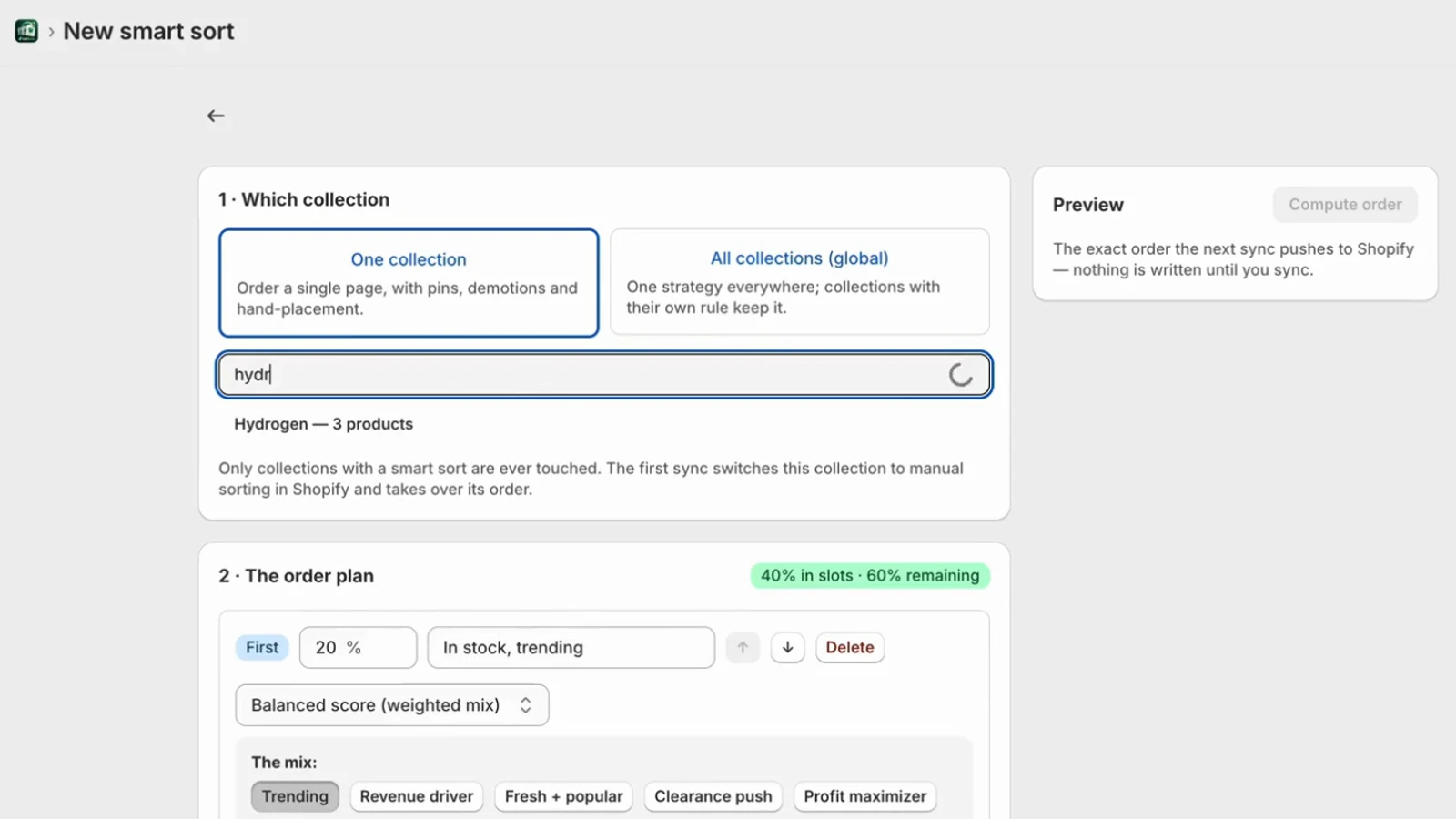
Each collection can have one smart sort. If the collection you pick already has one, SellRank sends you to edit it instead of creating a duplicate.
Step 4: Keep the default order plan, or pick one measure
Under 2 · The order plan, SellRank starts you with two slots. The first 20% of the collection is in-stock products ranked by the Trending mix of recent views, add-to-carts and orders; the next 20% is the most viewed products; everything else follows below. That default is a sensible first order for most collections, so you can keep it for your first sync.
If you would rather rank the collection by a single measure, such as revenue over the last 30 days, set the slot to that measure instead. Part 2 of this series covers slots, conditions and the balanced score in depth.
Step 5: Check the preview
The Preview panel on the right shows the exact order the next sync will push to Shopify, product by product, and nothing is written until you sync. Badges at the top summarise the change: how many products the collection holds, how many will move, and how many are demoted or placed by hand.
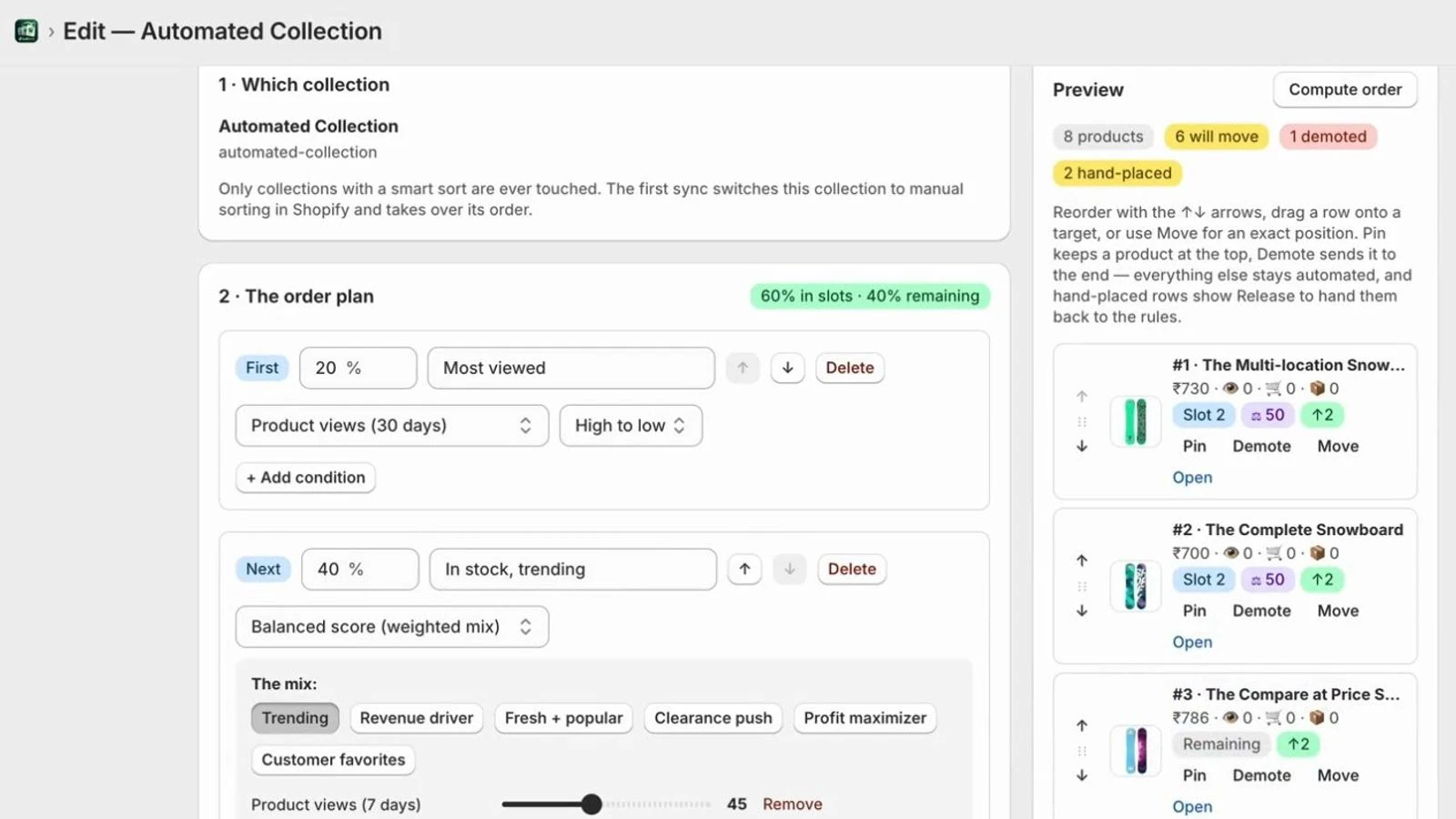
Each tile shows the product's price, views, add-to-carts and orders, the slot that placed it, and its score, so you can always see why a product landed where it did.
Step 6: Create it, then sync
- 1Click Create smart sort at the bottom of the page.
- 2Back on the home page, your smart sort appears as a card with its plan, its last sync and its schedule.
- 3Click Sync now on the card.
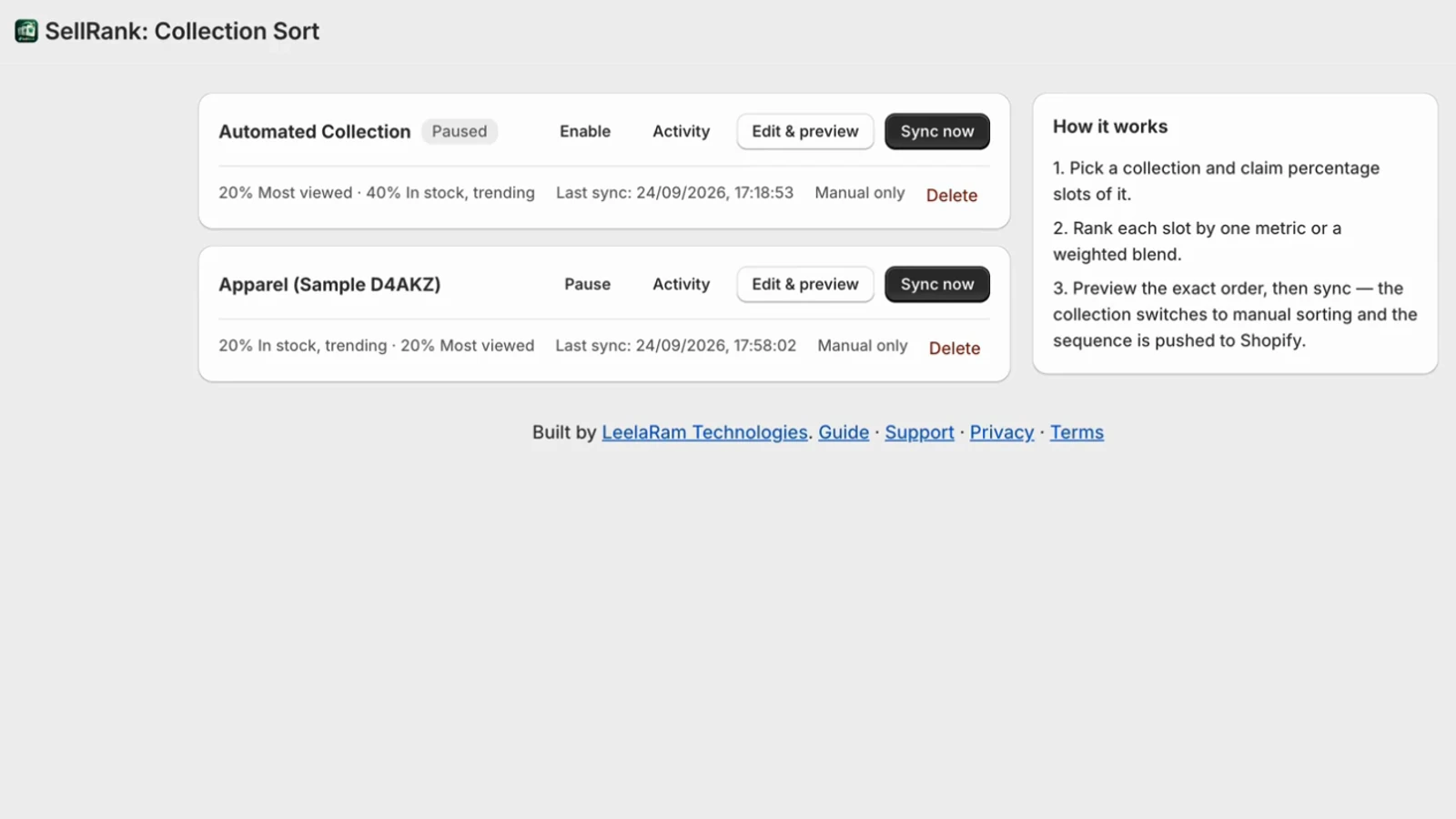
The first sync switches the collection to Manual sorting in Shopify and writes the previewed order. If the collection is already in exactly that order, SellRank says so and moves nothing.
Step 7: See it in Shopify admin
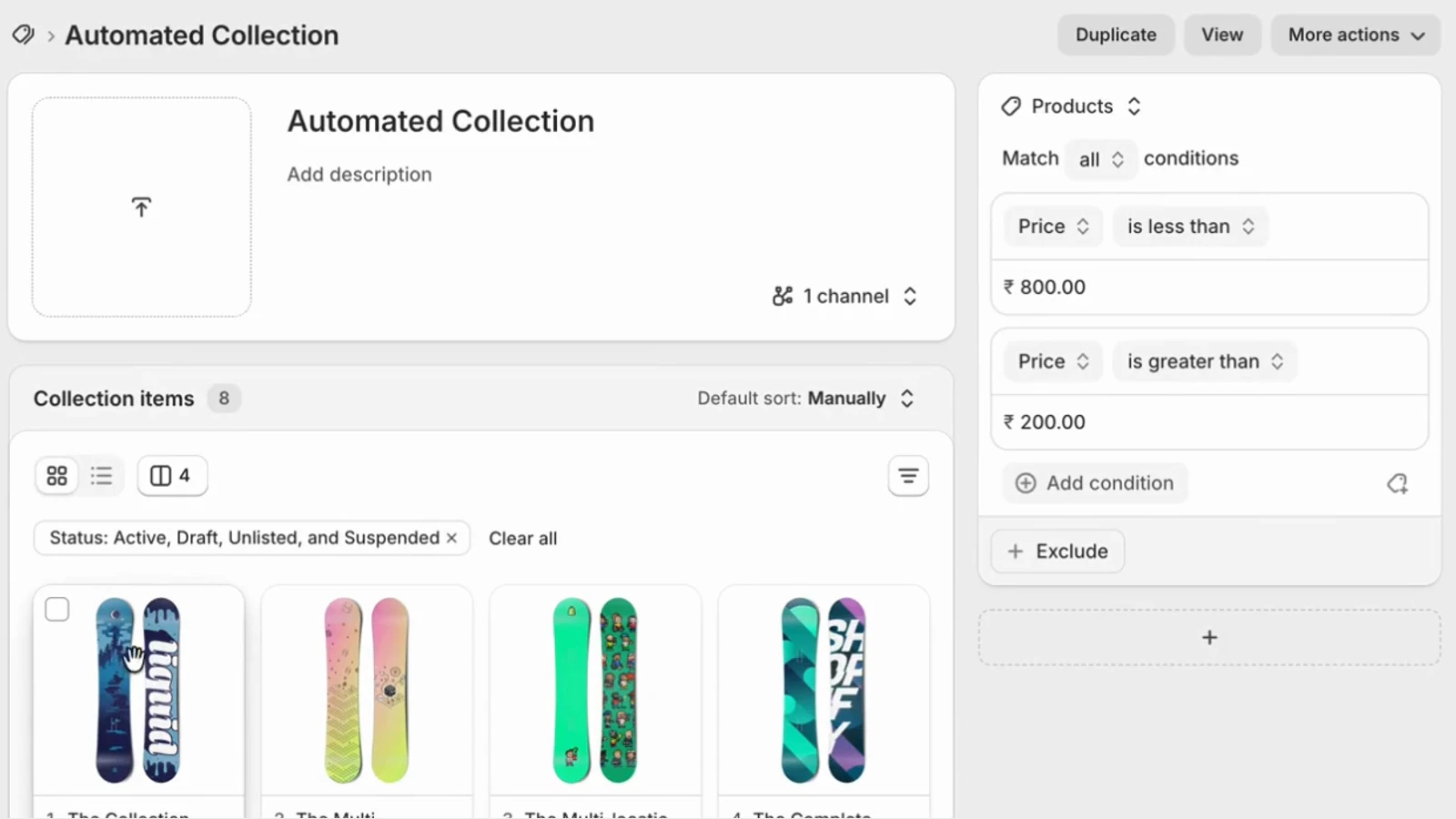
Open Products, then Collections, in Shopify admin and click the collection. Its sort now reads Manually, and the products appear in exactly the order you previewed. The collection page on your storefront shows the same order.
What the free plan covers
The free plan covers one collection and one live sync, with the full editor, preview and curation. When that sync has been used, the editor and preview stay open, and a paid plan adds syncs and collections. Grow covers 15 collections with daily or weekly re-sorts; Scale covers 75 and adds the store-wide rule, profit ranking and the Google Analytics import; Max removes the collection limit. Every paid plan starts with a 7-day free trial and is billed through Shopify.
Next in this series
Part 2 shows how to shape the order yourself: percentage slots, conditions, the 19 ranking measures and the balanced score.