SellRank setup guide
From installing the app to seeing a collection reordered by real sales and demand. About five minutes, no code, no theme edits.
5 min
To the first synced collection
0
Theme files touched
Free
To try on one collection
The whole setup, on video
Every step below, done on a real store in under eight minutes, with the optional Google Analytics import after it. The chapters are listed on the SellRank page.
Nothing to install in your theme. Ever.
SellRank writes into Shopify's own Manual collection order, which your theme already renders, and its views-and-carts pixel installs itself through Shopify. No snippet, no theme.liquid, no developer. Install the app, open it, sort — that is the whole setup.
The access it asks for is read-mostly: it reads orders, inventory and store activity to rank products, and only writes the order of products inside a collection. It never touches customer data.
Install from the Shopify App Store
Open SellRank's listing at apps.shopify.com/sellrank-collection-sort and click Install. Shopify shows exactly what the app can access, then its own plan page opens: choose Free to try SellRank on one collection, or start a seven-day trial of a paid plan. Billing runs through Shopify, and SellRank then opens inside your admin.
- View orders, inventory and store activity — to rank by real demand
- Edit product order in collections — the sort it applies
- Install an engagement pixel — counts views and add-to-carts, nothing else
The app sets itself up
On first open the engagement pixel installs in the background and starts counting product views and add-to-carts. There is nothing to configure.
A Free preview banner explains the deal up front: one collection and one live sync to try on your own store. The full editor and live preview stay open the whole time.
Choose a collection and how to rank it
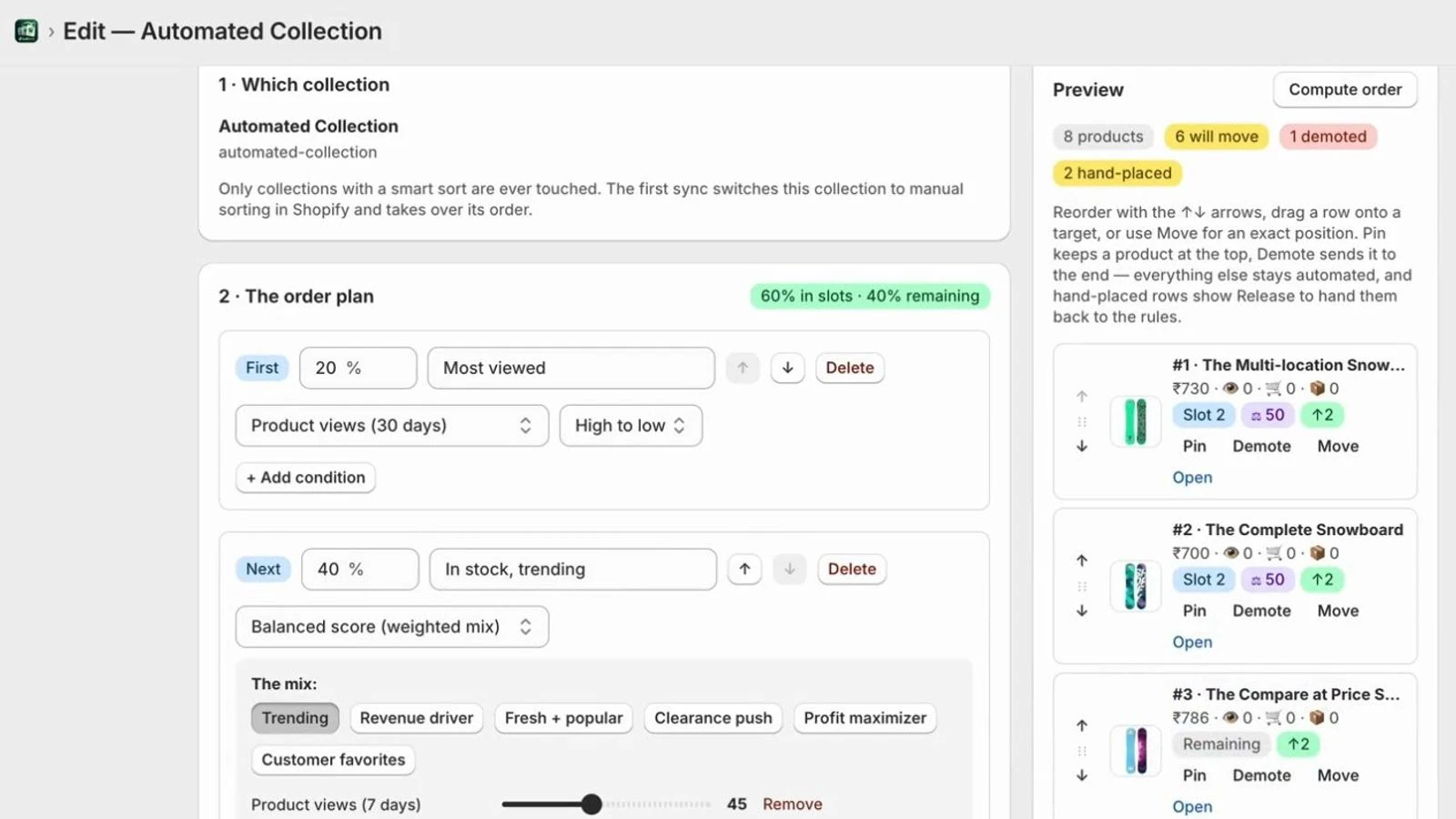
Click Create smart sort and pick a collection: search every collection in the store by name or handle, or paste the collection's link from Shopify admin. The simplest path is one metric from the dropdown: Revenue, Orders, Conversion %, Sell-through and more, with Profit on Scale and Max. Or use the Balanced score, which blends several metrics with weights into one 0 to 100 score.
Slots go further: claim percentages of the page and fill them top-down. "The first 20% is in-stock products ranked by the Trending mix, the next 20% is most viewed" is one rule with two slots. Conditions such as in stock only, a price range, a tag or a vendor refine each slot. Everything unclaimed follows in the "everything else" order, and out-of-stock products can be parked at the end.
Percentages scale with the collection: "first 20%" means 20 products on a 100-product page and 8 on a 40-product page.
Preview the exact order
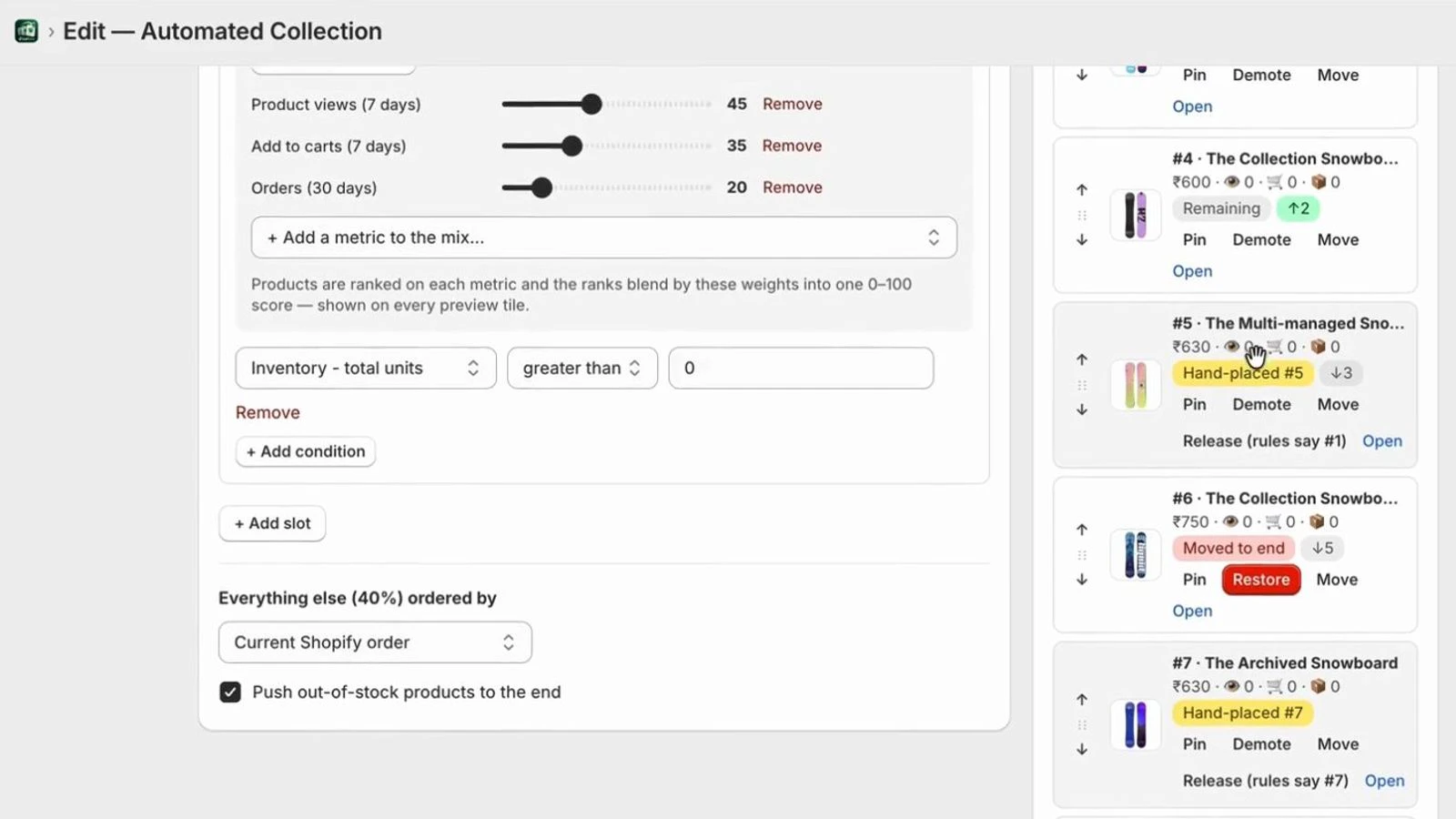
The live preview shows precisely how the collection will look, product by product, with a badge on each tile explaining why it landed there: its score, or the slot it filled.
Not quite right? Pin a hero product to the top, demote one to the end, drag any tile by hand, or move it to an exact position. Your choices always win over the automatic order.
Sync it to your store
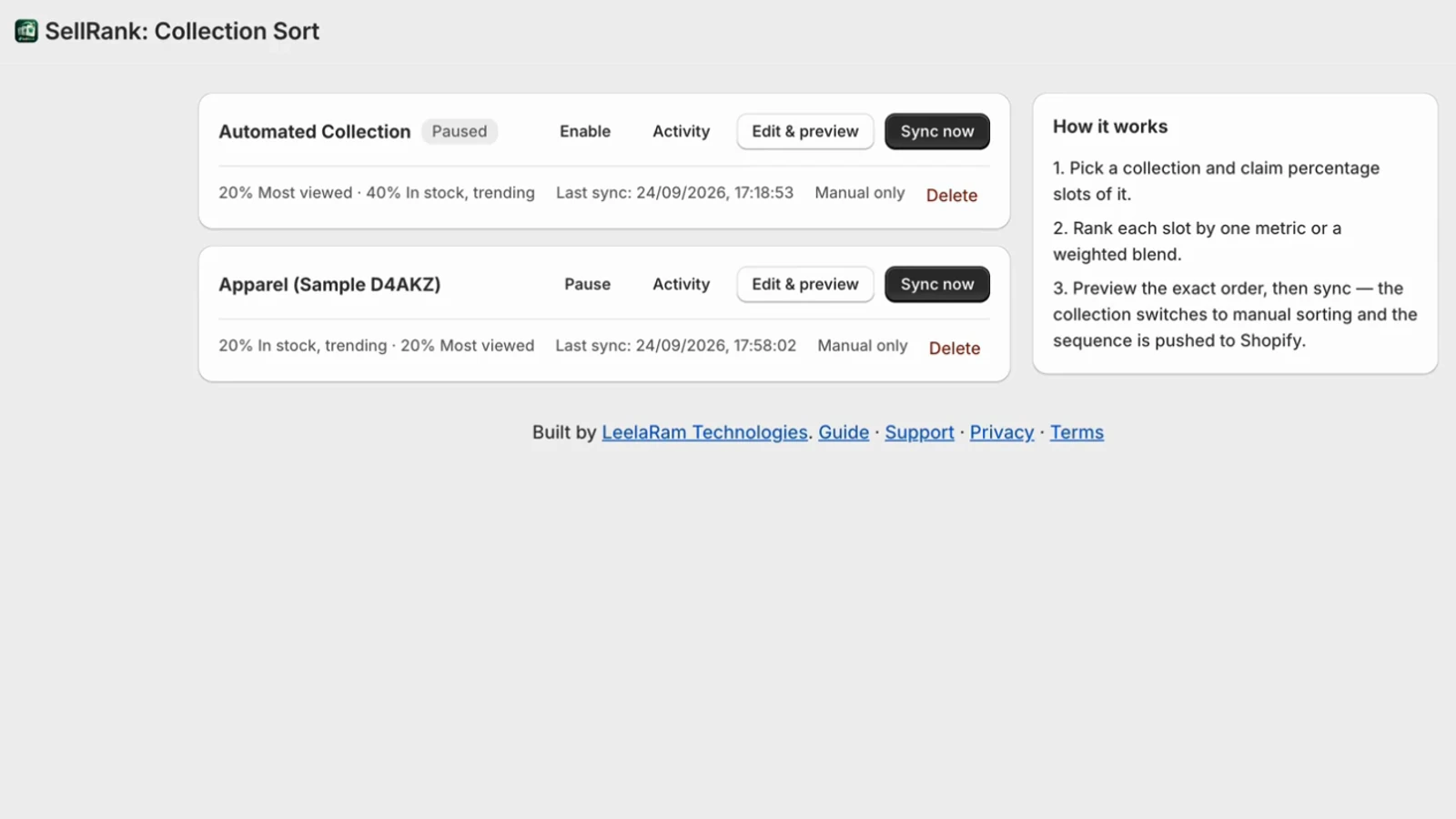
One click on Sync now switches the collection to Manual sorting and pushes the previewed order into Shopify. It is live on the storefront in seconds. This is the free sync you get to try.
Every position is verified: what you previewed is what lands, product for product. If Shopify's order ever drifts, the app flags the collection and offers a one-click re-sync.
Shopify stops re-sorting a collection once it is on Manual. SellRank re-sorts it instead: whenever you press Sync now, or every day or week on the schedule you set.
Daily and weekly re-sorts
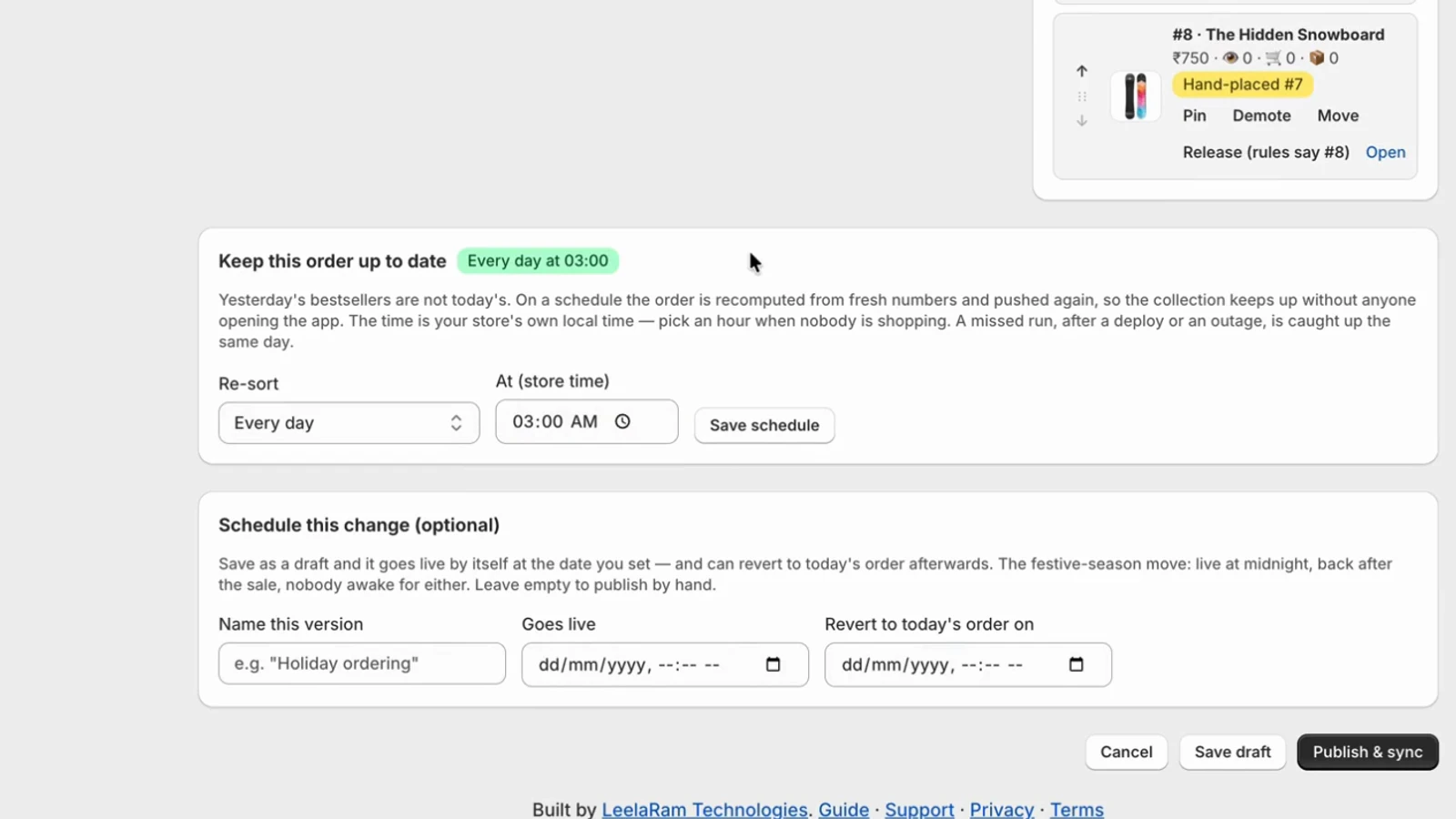
Yesterday's bestsellers are not today's. In a smart sort's editor, Keep this order up to date sets it to re-sort every day, or once a week on a day you choose, at an hour in your store's own time zone. Press Save schedule to apply it; on the schedule, SellRank recomputes the order from fresh numbers and pushes it without anyone opening the app.
A run missed during a deploy or an outage is caught up later the same day, and a manual Sync now never cancels that day's scheduled run. Scheduled re-sorts come with the Grow plan and up.
Drafts, scheduling and versions
Editing an existing smart sort stages a draft. The live order does not change until you press Publish & sync. Give the draft a go-live date and it publishes itself; add a revert date and the previous order comes back automatically. Sale ordering live at midnight, reverted after the sale, with nobody awake for either.
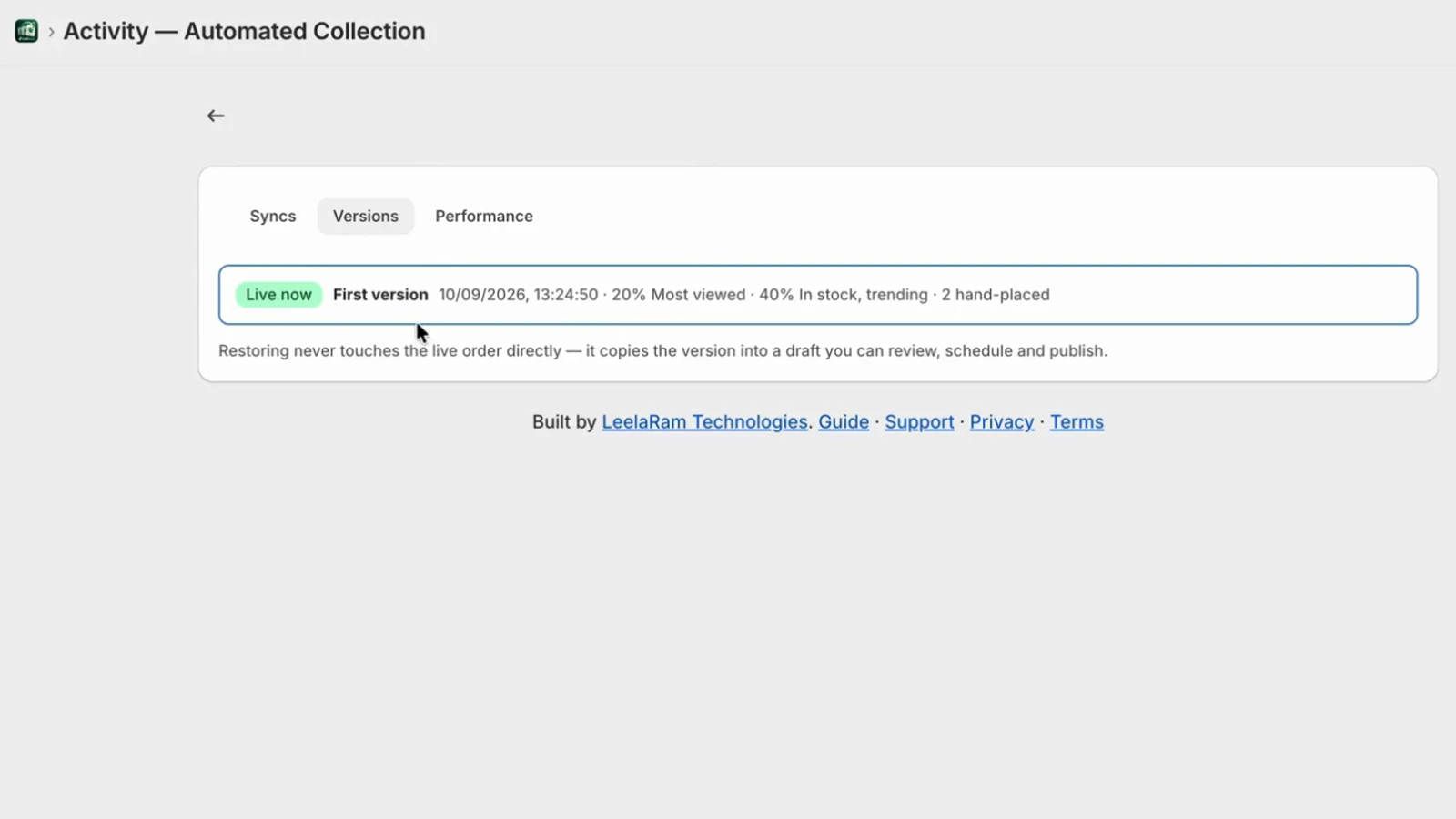
Every published configuration is kept under Activity → Versions. Restore any of them into a draft, and compare how each version performed.
The global rule
"All collections" applies one strategy to every collection that does not have its own smart sort. A specific rule always wins. Product-level pinning is off there; give a collection its own rule to curate it by hand. The global rule is part of the Scale and Max plans.
Where the numbers come from
- Views and add-to-carts: the app's own pixel, installed automatically. Counting starts the moment shoppers browse; no analytics setup needed.
- Orders and revenue: your Shopify orders, exact.
- Stock, price, tags, vendor and type: your live catalogue. "Available to buy" includes made-to-order products; use "Inventory, total units" for physical stock only.
- Ratings: the standard review metafields written by Judge.me, Loox, Yotpo, Stamped and Okendo. No separate integration.
Optional: cost per item, for profit sorting
Enter cost per item on your products in Shopify (Products → Pricing → Cost per item) and the Profit and Margin % strategies light up. Where a cost is missing, profit reads zero rather than a guessed number, and the label says "est." for exactly that reason.
Optional: Google Analytics, for day-one history
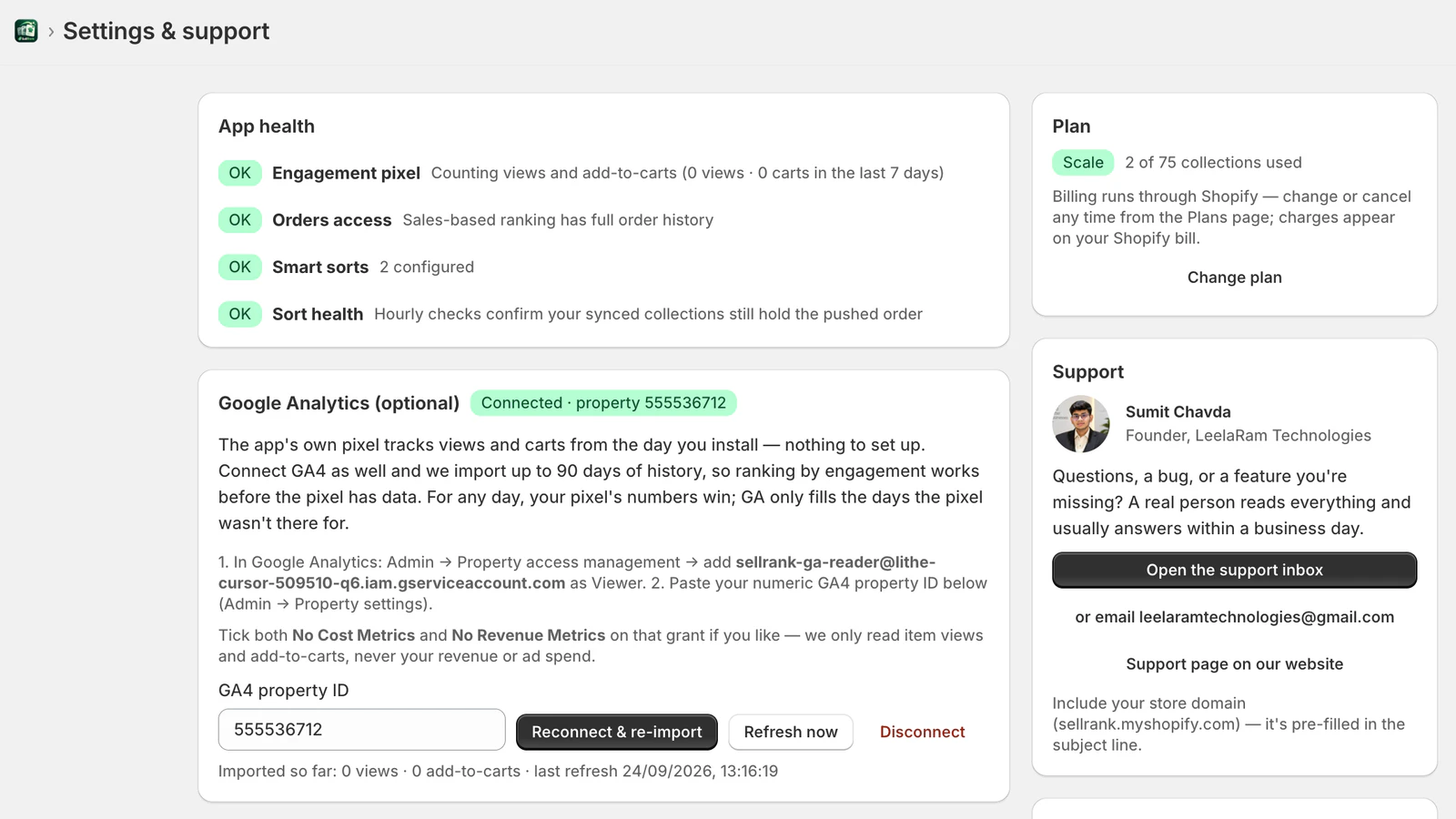
On the Scale and Max plans, open Settings → Google Analytics, grant the address shown Viewer access in your GA4 property, and paste your property ID. The app imports up to 90 days of views and add-to-carts so engagement-based ranking works before the pixel has data. The pixel stays the source of truth going forward, and no Google credentials are stored on our side.
Plans and billing
The free preview covers one collection and one live sync, with the full editor open. Grow ($29/month) adds unlimited syncs across 15 collections with daily or weekly re-sorts, drafts, scheduling, versions and analytics. Scale ($69/month) covers 75 collections and adds the global rule, GA4 backfill and profit metrics. Max ($249/month) is unlimited with priority support. Every paid plan starts with a 7-day free trial, yearly billing gets two months free, and everything is billed through Shopify. Change or cancel from the Plans page in your admin at any time.
What happens if you uninstall
Syncing stops immediately. Your collections keep the last order that was pushed and stay on Manual sorting until you change them in Shopify admin. Nothing breaks, and no theme files were ever touched. Shopify then instructs us to erase everything held for your store, and we do.
Honest answers to what merchants ask most
Where do I install SellRank?+
From the Shopify App Store at apps.shopify.com/sellrank-collection-sort. Click Install, approve the permissions, and Shopify's own plan page opens: pick the Free plan or start a seven-day trial of a paid plan. Billing runs through Shopify, on your Shopify invoice.
Do I need to edit my theme or add any code?+
No. Sorting writes into Shopify's own manual collection order, which your theme already renders, and the engagement pixel installs itself through Shopify. Install, open, sort — that's the whole setup.
What happens to my collections if I uninstall?+
They keep the last order that was pushed and stay on manual sorting until you change them in Shopify admin. Nothing breaks, and no theme files were ever touched.
Where do views and add-to-cart numbers come from?+
From the app's own web pixel, which counts them per product per day as aggregates — no customer identifiers, ever. Optionally, a GA4 property can be connected to import up to 90 days of history.
How accurate is the sorting?+
Provably exact. Every ranking option is verified against known inputs, the move planner is tested on over 78,000 cases, and after each real sync the app confirms Shopify holds the computed order position by position.
Does profit sorting need anything from me?+
Only that cost per item is filled in on your products in Shopify. Where it isn't, profit and margin read zero rather than a guessed number — the label says 'est.' for exactly that reason.
Is there a free plan?+
Yes — one collection with the full editor, live preview and curation, plus one live sync to see it on your own store. The paid plans add more collections, automation, analytics and version history.
Can SellRank re-sort my collections automatically?+
Yes. Set a smart sort to re-sort every day, or once a week on a day you choose, at an hour in your store's own time zone. It recomputes the order from fresh numbers and pushes it to Shopify without anyone opening the app, and a run missed during an outage is caught up the same day. Scheduled re-sorts come with the Grow plan and up.
Go further, one feature at a time
- 1Install SellRank and Sync Your First Collection6 min read
- 2Build an Order Plan with Slots, Conditions and a Balanced Score6 min read
- 3Pin, Demote and Hand-Place Products in the Live Preview4 min read
- 4Daily Re-Sorts, Drafts, Version History and Sort Health5 min read
- 5Rank by Profit and Connect Google Analytics 44 min read
The strategies, explained
- Every Shopify Collection Sort Option, and Exactly Where Each One Breaks6 min read
- A Collection Sorting Playbook for Sale Season: Drafts, Schedules and Auto-Revert6 min read
- Profit-Aware Merchandising: Sorting by Margin, Not Just Sales5 min read
- Out-of-Stock Products at the Top of Your Collection Are Costing You Orders5 min read
Ready to sort by what actually sells?
Free to try on one collection. Install, preview, sync — five minutes.
Or email leelaramtechnologies@gmail.com