Keep a SellRank collection order current without opening the app: re-sort it every day or once a week, stage changes as drafts with go-live and revert dates, restore an earlier version, and let the hourly check catch drift.
This is part 4 of the SellRank tutorials. A collection order is only as good as the numbers behind it, and yesterday's bestsellers are not today's. This part covers everything that keeps an order current once it is live, and what to do when you want an earlier one back.
Re-sort every day or once a week
Open a smart sort with Edit & preview and scroll to Keep this order up to date. On a schedule, SellRank recomputes the order from fresh numbers and pushes it to Shopify without anyone opening the app.
- 1Under Re-sort, choose Every day or Once a week. The third option, Only when I press Sync now, keeps the collection manual.
- 2For a weekly re-sort, choose the day under On.
- 3Set the time under At (store time). It is your store's own time zone, so pick an hour when nobody is shopping.
- 4Click Save schedule. The badge beside the heading changes to the saved schedule, such as Every day at 03:00.
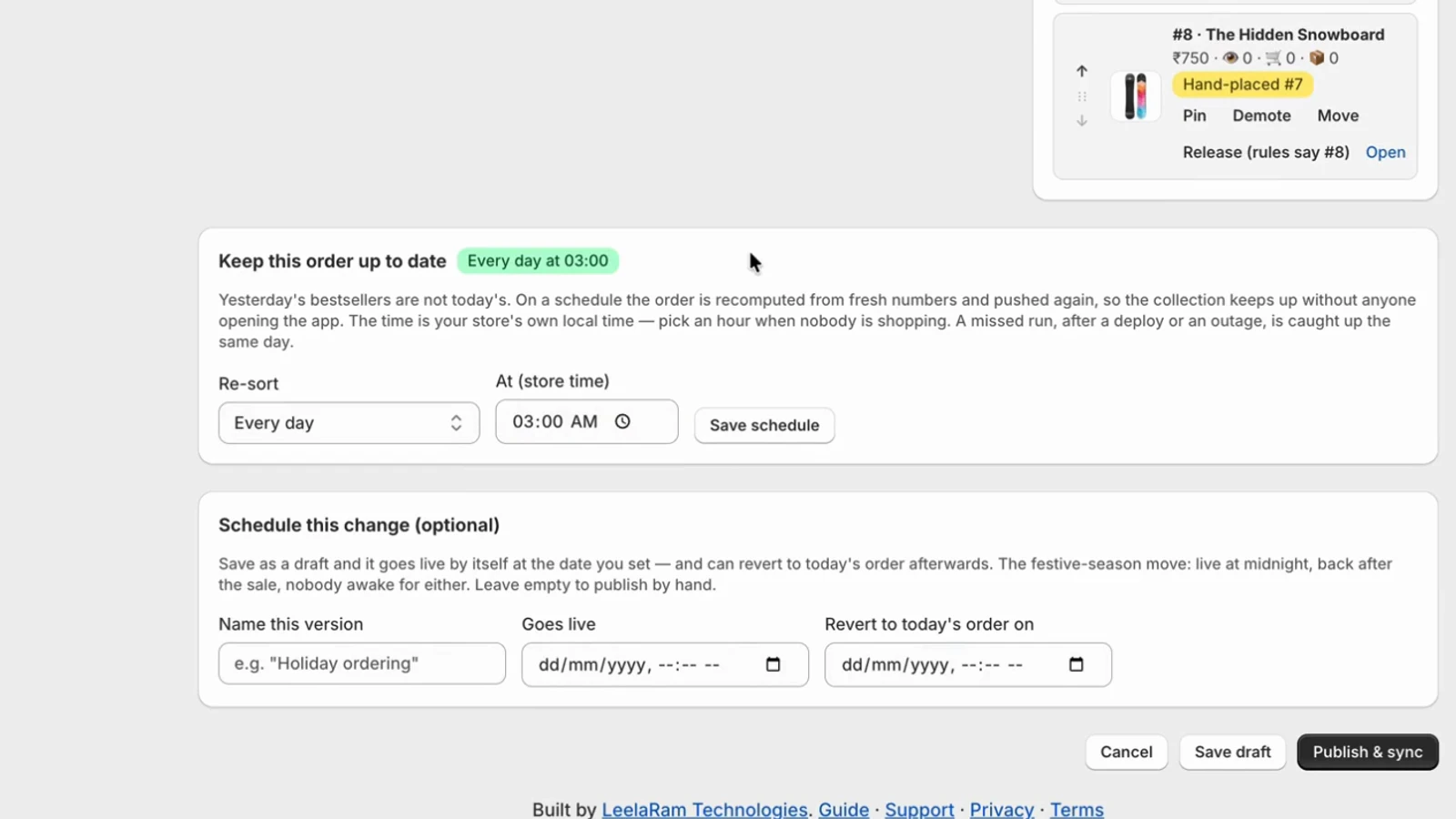
Until you press Save schedule, a change on this card does nothing: it says Not saved yet and names the schedule that is actually in force. If a scheduled run is missed during a deploy or an outage, it is caught up later the same day.
Scheduled re-sorts come with the Grow plan and up.
Stage changes as drafts
Editing a smart sort that is already live creates a draft: the live order does not change until you publish. At the bottom of the editor, Schedule this change (optional) lets a draft publish itself:
- Name this version, such as Holiday ordering, so you can find it later.
- Goes live: the date and time the draft publishes by itself.
- Revert to today's order on: the date the previous order comes back automatically.
Click Save draft to keep it without publishing, or Publish & sync to put it live now. A sale order can go live at midnight and revert after the sale, with nobody awake for either.
Activity: every sync, logged
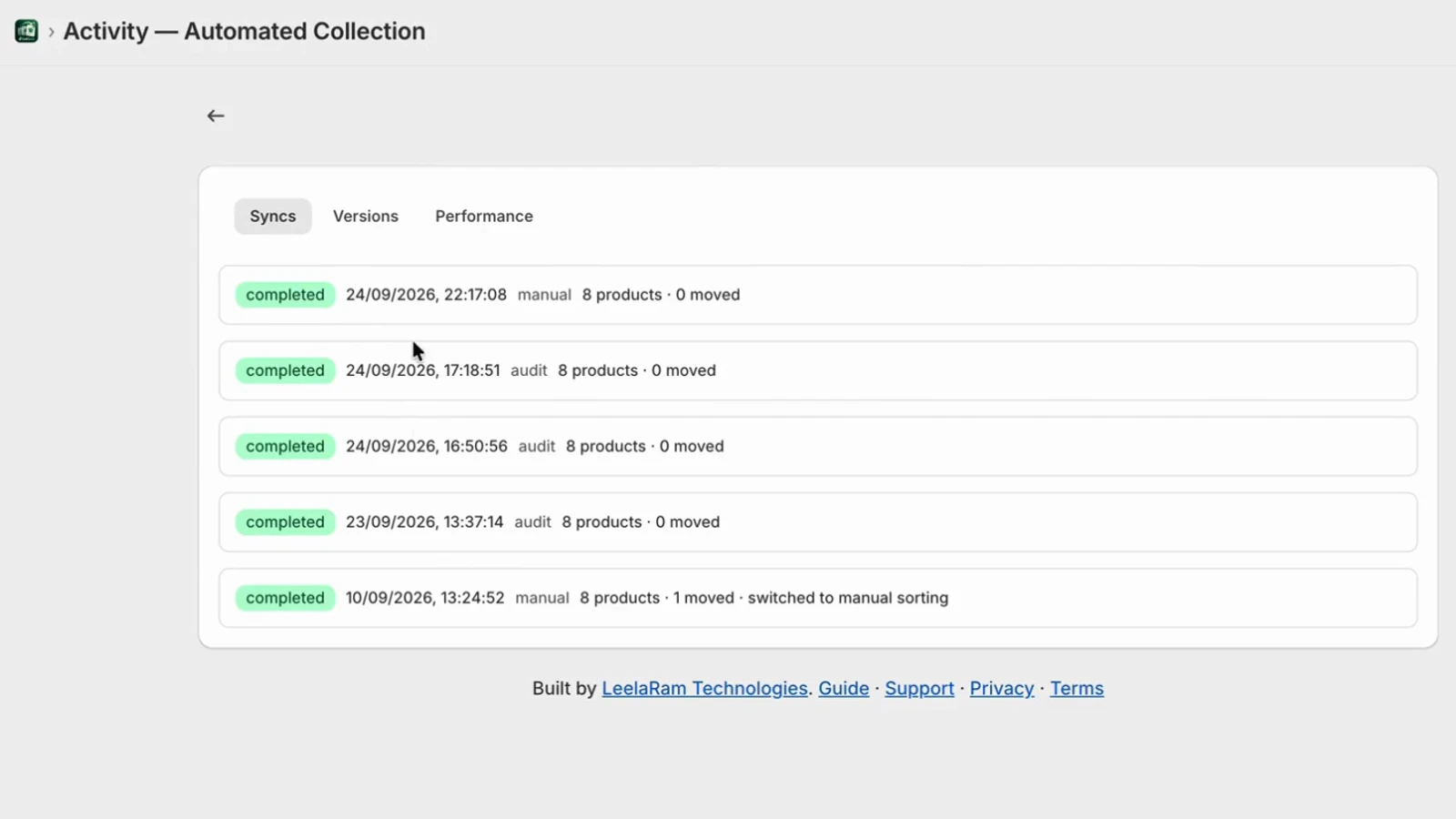
Activity on a smart sort's card opens its history. The Syncs tab lists every sync: when it ran, what started it, such as a manual sync or a scheduled one, how many products it covered and how many moved.
Versions: go back to any published order
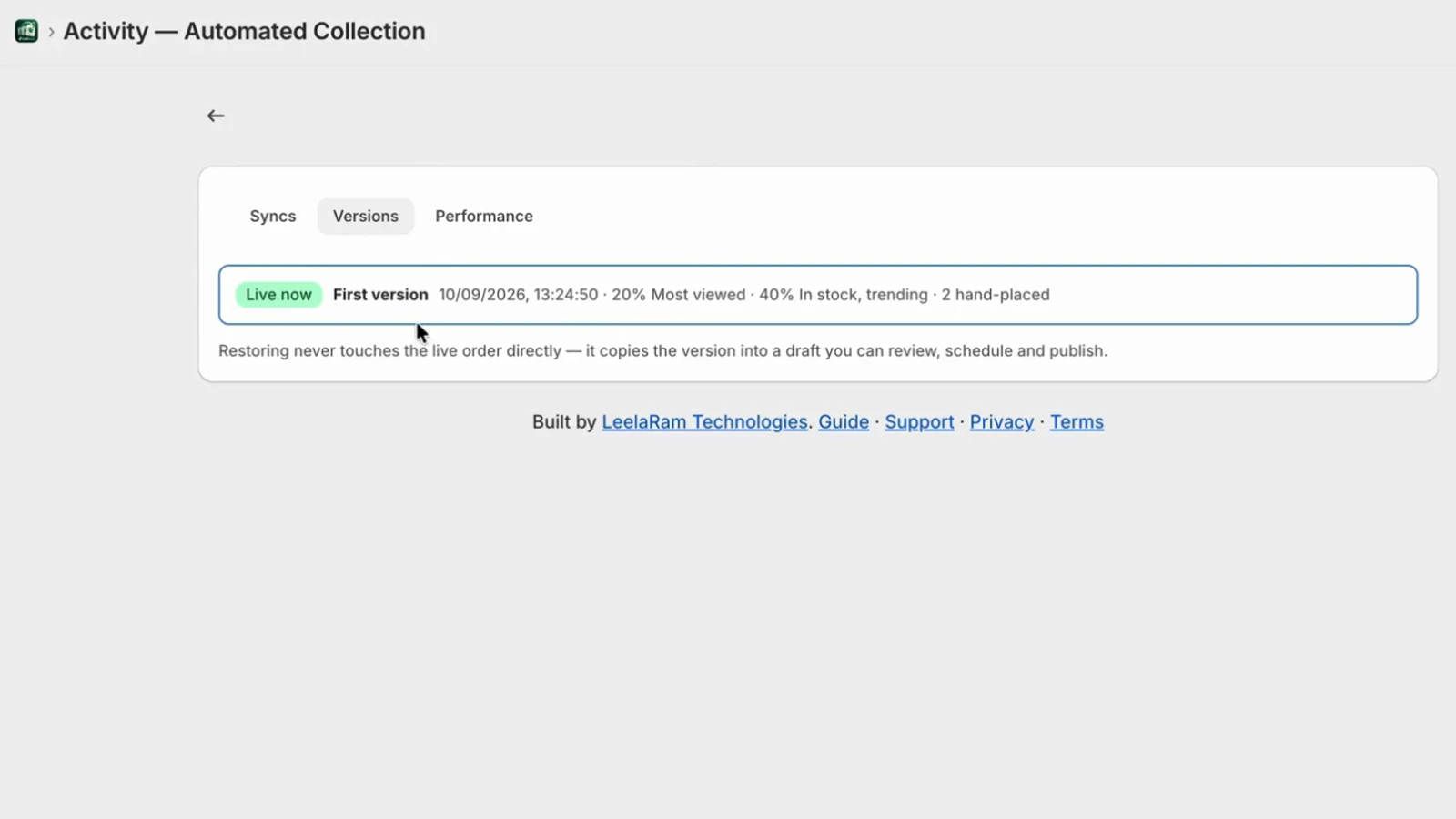
The Versions tab keeps every configuration you publish, with the one in force marked Live now. Restoring a version never touches the live order directly: it copies that version into a draft for you to review, schedule and publish.
Performance: did the new order work?
The Performance tab compares the top rows of the collection with the rest, on views, add-to-carts, orders and revenue, and totals each version's days side by side. For a fair comparison, run each version for at least a week, and alternate by restoring the other one from Versions.
Pause and enable
Pause on a smart sort's card stops all syncing for that collection, scheduled re-sorts included. The collection keeps its last order until you enable it again.
Sort health: catching drift
Once a collection is synced, anything can reorder it: a colleague in Shopify admin, another app, a bulk import. SellRank checks every hour that Shopify still holds the order it pushed. If a collection has drifted, its card says so, and Sync now puts the order back. Settings shows the result in App health, under Sort health.
Next in this series
Part 5 covers ranking by profit and importing Google Analytics 4 history, on the Scale and Max plans.